Geneos Licence Daemon
Critical Update
From February 2026, ITRS is introducing a new license file format, which requires the Licence Daemon to be upgraded to version 7.8.0 or later. Support for Licence Daemon versions earlier than 7.8.0 will end on 31 July 2026.
We strongly recommend upgrading your Licence Daemon ahead of time. Refer to the upgrade notes for full details and required actions, and contact ITRS Support to obtain a new license file.
Intended audience Copied
This document is a reference guide and is aimed at administrators of the Geneos monitoring system. It is expected that readers will have some familiarity with the Geneos product. Readers are also expected to be familiar with UNIX command line operations.
Introduction Copied
Licensable features Copied
Certain features of Geneos require a license in order to be used. These features can be divided into the following broad categories:
- Being able to run Geneos binaries such as Gateways and Netprobes.
- Being able to use certain Gateway features such as database logging or compute engine.
- Being able to use instances of certain Netprobe or Collection Agent plugins.
The Licence Daemon Copied
The Licence Daemon is a Geneos process that other Geneos processes connect to in order to acquire permissions to use certain Geneos features.
Features related to Netprobes, such as the ability to run certain plugins, are licensed through Gateways. Netprobes do not directly connect to the Licence Daemon.
The Licence Daemon refers to a single license file. The license file contains information about the number of each type of Geneos feature that a particular client installation is allowed to use. It is provided by ITRS and has an expiry date, after which it will no longer be valid.

Licence requests Copied
When a Geneos process requires a license for a particular type of functionality, it sends a license request to the Licence Daemon. This request is granted or denied based on available license, current usage, and the mode that the Licence Daemon is running in.
Requests can be revoked or accepted at any time. For example, a license request that has been granted can be later denied when the license file expires.
When a license is granted, the Geneos component will enable the relevant functionality. When the license is revoked, the Geneos component will disable the relevant functionality.
Licence Daemon modes Copied
The Licence Daemon can run in one of two modes: ENFORCING or MONITORING.
- In Enforcing mode, the Licence Daemon will only grant licenses if there are sufficient unused licenses to match the request.
- In Monitoring mode, the Licence Daemon will always grant the request. This mode is used to monitor the license being used rather than to lock a site down to an exact number of license.
The mode of the Licence Daemon is controlled by a setting in the license file obtained from ITRS.
Licensing information Copied
Once the Licence Daemon is running, you can see license usage and availability information within Geneos. These views can be seen via a Gateway using the Licence Usage Gateway plugin(see Monitoring).
The Licence Daemon also implements enhanced security and reporting capabilities. It generates a consolidated encrypted report file showing what components are being used in the deployment. The report file is digitally signed to ensure data integrity and prevent tampering. For more information, see Reporting.
Demo mode Copied
You can run Geneos in demo mode without a license daemon to trial the software.
For more information, see Demo mode in Gateway Licensing.
Running the Licence Daemon Copied
Operating system support Copied
Please refer to the Geneos Compatibility Matrix for the list of supported platforms.
When Security-Enhanced Linux (SELinux) is running in Enforcing mode, it may deny certain functions of Geneos depending on the implemented configurations and policies.
To see which functions SELinux denies, check the audit log. The log is typically located in /var/log/audit.log, where the log type entry is AVC. The audit log provides the details of any denied access, for example, denied connection to the TCP port.
If you experience issues related to this mode, you may opt to disable SELinux, or create policy modules to grant the required access. Please contact your administrator or security team for assistance.
Installation considerations Copied
Installation directory Copied
Select a directory to install and extract the files. For new installations, the following directory is recommended:
/usr/local/geneos/licd
Selecting a port number Copied
Each installed Licence Daemon must have a unique port on which it listens for connections from other
Geneos processes. The default port for the Licence Daemon is 7041. If this port is unavailable, you must select an available unique port.
Running multiple Licence Daemons Copied
You cannot run more than one instance of the Licence Daemon on a single server. If you attempt to start a second Licence Daemon on the same box, it will exit with the following log message:
Another License daemon is already running on this host - terminating.
An organization should not require more than one Licence Daemon. Administrators can partition licenses between departments using the license grouping functionality.
Selecting the log file directory Copied
The Licence Daemon generates a log file. You can specify a particular location using the -log command line parameter. For more information regarding the Licence Daemon log file, see Licence Daemon log.
Required libraries Copied
RHEL 10 Copied
| Library Name | Package Name |
|---|---|
| libssl.so.3 | openssl-libs |
| libcrypto.so.3 | openssl-libs |
| libcrypt.so.2 | libxcrypt |
| libresolv.so.2 | glibc |
| libz.so.1 | zlib |
| libm.so.6 | glibc |
| libc.so.6 | glibc |
RHEL 9 Copied
| Library Name | Package Name |
|---|---|
| libssl.so.3 | openssl-libs |
| libcrypto.so.3 | openssl-libs |
| libcrypt.so.2 | libxcrypt |
| libresolv.so.2 | glibc |
| libz.so.1 | zlib |
| libm.so.6 | glibc |
| libc.so.6 | glibc |
RHEL 8 Copied
| Library Name | Package Name |
|---|---|
| libssl.so.1.1 | openssl-libs |
| libcrypto.so.1.1 | openssl-libs |
| libutil.so.1 | glibc |
| libnsl.so.2 | libnsl |
| libpthread.so.0 | glibc |
| libdl.so.2 | glibc |
| libcrypt.so.1 | libxcrypt |
| libresolv.so.2 | glibc |
| libz.so.1 | zlib |
| librt.so.1 | glibc |
| libm.so.6 | glibc |
| libc.so.6 | glibc |
Installing a Licence Daemon Copied
This section describes how to install a Licence Daemon and run it so that Geneos processes can connect to it and request licenses.
Extracting files Copied
The Licence Daemon package is supplied as a compressed tar file with a filename in the format:
geneos-licd-<version number>-<platform>.tar.gz
Extract this to your installation directory. The package contains the Licence Daemon binary.
Packages for certain operating systems may contain additional shared libraries inside a folder called compat. These may need to be put on the LD_LIBRARY_PATH when the Licence Daemon is run.
Installing the Licence File Copied
Before running the Licence Daemon, you must place the license file in the location where the Licence Daemon is run from. The license file needs to be called geneos.lic. See The Licence File for further information on this file.
Executing Copied
The Licence Daemon binary is named:
licd.<platform>
The binary can be executed without any command line options, at which point it is ready to listen to and accept incoming connections from Geneos processes on the default port 7041.
You can run Gateways so that they connect to this Licence Daemon. The Gateway must be given the hostname of the box that the Licence Daemon is running on as a command line option. For more information, see Gateway Licensing.
Command line options Copied
The following command line options are available in the Licence Daemon:
| Option | Use |
|---|---|
-create-grouping-template <filename> |
Allows the administrator to generate a template for group allocation files. |
-file-report-dir <directory> |
Specifies the directory in which to write the license reporting files. If the directory does not exist, it will be automatically created. If the directory creation fails, the error is logged and the program terminates. Default: |
-grouping-dir <groupdirectory> |
Specifies the directory in which the administrator will place the grouping allocations. Each group will have a single file specifying the tokens that have been allocated to that specific group. See Licence Groups. |
-hash-details |
Controls whether sensitive data fields are obfuscated using SHA256 hashing. Default: |
-help [topic] |
Displays help about the topic if specified, or this help message. Topic can be any of the parameters shown below. |
-ignore-group-size-check |
Allows the administrator to tell the Licence Daemon not to check that the number of preallocated tokens in group files are less than or equal to the number of tokens in the license file. This option is only available if the Licence Daemon is running in MONITORING mode. |
-log <logfile> | -nolog |
Used to specify the name of the Licence Daemon logfile. The Running the Gateway with the For more information about the logfile, see Licence Daemon Log. |
-logMaskingRules <path> |
Specifies a YAML or JSON file that defines log masking rules applied to Licence Daemon log lines before they are written. A starter template is packaged as templates/log-masking-rules.yaml. |
-minTLSversion |
Specifies the minimum TLS version. The accepted values are:
|
-openssl-cipher <ciphers> |
To set the available TLS ciphers use the -openssl-cipher <ciphers> command line option, replacing <ciphers> with a comma separated list of ciphers. For more information, see TLS ciphers in Secure Communications. |
-port <number> |
Used to specify the port the licence daemon listens on for other Geneos processes to connect to. The option must be followed by the listen port, a positive integer in the range 1-65535 inclusive.
If -port is not specified, the default port of 7041 is used. |
-ssl-certificate
-ssl-certificate-key
-ssl-certificate-chain
-secure |
These flags allow the Licence Daemon to be configured to listen on a secure port, rather than an insecure port. The Licence Daemon only listens for license requests on a single port, so it is either listening just on an insecure port or just on a secure port. For more details, see Secure Communications.
|
-v, -version |
Used to display version information for the Licence Daemon. It contains information about the exact version of the Licence Daemon and all the libraries contained within. This information is often useful when raising a support issue. |
-disable-webpage |
Used to disable the web interface. Requests to /licensing, /licensing/css, /licensing/img, and related paths will return a 404 error. |
The license file Copied
The license file contains information about the number of each type of Geneos feature that a particular client installation is allowed to use. The license file must be called geneos.lic and must be placed in the current directory of the Licence Daemon before it is started.
Acquiring a license file Copied
The license file will be provided by ITRS. Request a license by contacting ITRS support.
If you run the Licence Daemon without a license file, it will output the hostid and hostname of the server to the Licence Daemon log.
Changing the license file Copied
To change the license file:
- Shut down the Licence Daemon. This does not have any immediate effect on the Geneos functionality that was being licensed through this Licence Daemon. Geneos processes are made to retain their current licensing status in the event of being unable to connect to a Licence Daemon. See Licence Persistence for more information on license persistence and the limitations of running Geneos components when there is no Licence Daemon available.
- Overwrite the current
geneos.licwith its replacement. - Start up the Licence Daemon again.
At this point, the Geneos processes that were previously connecting to this Licence Daemon will reconnect and re-submit their licensing requests. The Licence Daemon will then attempt to service these requests using the license found in the new license file.
Viewing the contents of a license file Copied
The most convenient way to view at the contents of the license file is to look at the licensing web page in the licensing web front-end. The Overall table shows a list of the number of each license tokens provided by ITRS and the top right shows the mode that the Licence Daemon is running in.

Expiry Copied
Licence files have an expiry date. The expiry date of the current license file can be seen using the Licence Usage Gateway plugin or the Gateway Data plugin (see Monitoring).
The license is no longer valid once the expiry date is reached. If the expiry date is reached on a license file that is in use, instances of Geneos functionality having license granted through the particular Licence Daemon will have their license revoked and the functionality in question will stop working. Therefore, a license file nearing expiry should ideally be replaced before it expires.
It is important to monitor the time to expiry of the license provided by ITRS. See Monitoring for a description of the best way to monitor the Licence Daemon.
License groups Copied
Licence groups provide Licence Daemon administrators with a way to control the usage of licenses through out their estate. The Licence Daemon administrator can assign a number of license tokens to a group and assign one or more Gateways to that group. The group is assigned using the Licensing group setting in the Operating Environment section of the Gateway Setup Editor.
When Gateways request a license from the Licence Daemon, they provide the group in which they reside as part of their request. The Licence Daemon then attempts to acquire the license from the tokens assigned to that group by the Licence Daemon administrator.
If the Licence Daemon has allocated all the licenses of the requested type that have been assigned to the group, then no more licenses are available for that group.
- If the Licence Daemon is running in ENFORCEMENT mode, the Licence Daemon rejects the license request.
- If the Licence Daemon is running in MONITORING mode, the license is still granted, but the number of allocated licenses for the group will exceed the number assigned, and the number available is reported as negative.
Any number of groups can be specified by the administrator. The system creates a final group called Other. Any request for a license from a Gateway that is in a group that has not been configured by the Licence Daemon administrator is allocated from the Other group.
Example
ITRS provides a license that allocates 100 tokens for servers, cpu, and hardware, and unlimited tokens for Gateways that specifies ENFORCEMENT mode. The Licence Daemon administrator can then split this into groups G1, G2, and G3 as follows:
Starting with three Gateways running, all in group G1, and between them they have 40 Netprobes (all running cpu and hardware plugins).
If a fourth Gateway in group G1 with 20 Netprobes (all configured to run cpu and hardware plugins) is started, only 10 of those 20 probes would be granted licenses, despite the fact that there are currently 60 unused server, cpu, and hardware licenses. This is because this Gateway can only take licenses assigned to Group G1.
If a fifth Gateway in group G4 with 30 Netprobes (all configured to run cpu and hardware plugins) is started, only 20 of those 30 probes would be granted licenses, despite the fact that there are currently 50 unused server, cpu, and hardware licenses. This is because this Gateway can only take licenses assigned to Group Other. Group Other has an assignment of unlimited Gateways, 20 servers, 20 cpu plugins, and 20 hardware plugins. This is because the licenses assigned to Group Other are the licenses assigned by ITRS less the licenses assigned by each group.
Group validation Copied
One of the reasons for assigning licenses to a group is that the Licence Daemon administrator may wish to ensure that licenses required by one department are not used by another department. To ensure that grouping can provide this functionality, it is important that the number of licenses assigned to groups by the Licence Daemon administrator does not exceed the number of overall licenses provided by ITRS. If the Licence Daemon administrator configures too many licenses in their group files, the Licence Daemon will not start. It will provide errors in its log file explaining which tokens have been over assigned.
When running in Monitoring mode, there may be times when the Licence Daemon administrator need to exceed the number of licenses provided. They may have reviewed Geneos usage and increased the number of components used. While there is no need to change the group assignments, it can be beneficial to have the group assignments reflect the usage in the departments so that it is clear when a department is overusing resources. The command line option -ignore-group-size-check allows the administrator to specify group pre-allocations that exceed the number of allocations in the license file. This can only be specified for Licence Daemons that are running in Monitoring mode.
Probe license groups Copied
It is also possible to set the licensing group on individual probes on a Gateway. This allows for the sharing of license between departments.
Consider the following situation: a server needs to be monitored by both Department A and Department B and as such, both departments want to run Netprobes on that server. An unlimited number of Netprobes can be run on a single server, using one server license. If both groups added one server license to their own licensing group, that would require two server license in the overall file, because license tokens are assigned to a single group.
To solve this, an additional group A_and_B is configured on the Licence Daemon containing the server license for that particular machine. In the Gateway configurations for both departments, the licensing group is set to A_and_B. As such, both departments can guarantee monitoring of the server whilst still only using one server license overall.
In summary, setting a licensing group on a probe results in any license requests for that probe and all its plugins being served by the daemon from the probe licensing group rather than the Gateway licensing group.
Configuration Copied
The Licence Daemon looks for groups in a group directory located in Licence Daemon’s working directory. This can be overridden using the -grouping-dir command line option.
Each grouping is stored in a separate file in the directory. The first line is “GROUP” followed by the name of the group that administrator wishes to allocate items for. The following lines are token names with values.
As can be seen in examples in License groups, * can be used to indicate that the number of tokens is unlimited. To make it easier to generate these files, the Licence Daemon can create a template for the administrator. Running with the -create-grouping-template command line option will create a file containing all the tokens specified in the license file. All that is required is to enter the group name in the first line of the file and to replace the ? by the allocations for the group in question, then move the file into the group directory.
An example is shown below:
Group Template file generated by the Licence Daemon
GROUP [enter group name here]
<gateway> = ? # of *
<servers> = ? # of 100
<cpu> = ? # of 100
<hardware> = ? # of 100
To allocate licenses to groups when the license file provided by ITRS does not contain the tokens, it is necessary to use the command line option -ignore-group-size-check. This allows the number of licenses allocated to the groups to exceed the number of licenses allocated overall. This feature can only be used with license files that configure Monitoring mode.
| Group G1 file | |
| Group G2 file | |
| Group G3 file | |
License persistence Copied
Gateways continue to function if they lose connection to the Licence Daemon. Each successful license request is cached by the Gateway so if the connection is lost, the Gateway continues using the cached license. The cache is persistent across both Netprobe and Gateway restarts.
When the Gateway is disconnected from the Licence Daemon and the emergency grace period isn’t active, it can’t acquire new licenses. The following actions can’t obtain licenses until the Gateway reconnects to the Licence Daemon:
- Changing the Gateway name — If this occurs, the entire Gateway ceases to function until it can reconnect to the daemon. All monitoring will cease.
- Adding a new Netprobe — New Netprobes are not licensed even if they are on the same server as an existing probe.
- Changing the port or host of a Netprobe.
- Adding a new sampler on a Netprobe — The new sampler will not be granted a license. If a new sampler of the same type as an existing sampler is added on the same Netprobe, the cached license is used. However, should the Netprobe or Gateway restart, it is undetermined which of the two samplers (the original or the new one) will be granted a license.
- Adding a new Gateway component, such as Compute Engine or Knowledge Base if not previously used in the setup.
- Adding a Gateway breach predictor plugin — All other Gateway plugins do not require any licenses other than the Gateway license to run.
Emergency grace period Copied
Starting in Geneos 7.11.0, Gateways that lose connection to a compatible Licence Daemon can enter an emergency grace period. This allows continued licensing for a limited time during planned or unplanned Licence Daemon outages. It isn’t a substitute for a valid, connected Licence Daemon.
Qualification Copied
Before the grace period can activate, the Gateway must have been continuously connected to a Licence Daemon version 7.11.0 or later for at least 24 hours.
If the Licence Daemon disconnects before this qualification completes, the Gateway continues in cache-only mode: existing cached licenses remain available, but new license requests aren’t granted.
Behavior during the grace period Copied
When a qualified Gateway loses connection to the Licence Daemon:
- Cached licenses continue to apply as before.
- New license requests that would otherwise be unavailable can receive an emergency grant for the duration of the grace period.
- The Gateway may use up to seven days of disconnected time across the grace window.
- Time spent reconnected to the Licence Daemon doesn’t consume the seven-day budget; the countdown pauses while connected and resumes on the next disconnect.
- If the Gateway is restarted while the Licence Daemon is still unavailable, wall-clock time while the Gateway was stopped still counts toward the seven-day budget.
When the seven-day disconnected budget is exhausted, emergency grants are revoked and the Gateway returns to cache-only behavior. To become eligible for the grace period again, the Gateway must complete another continuous 24-hour connection to a compatible Licence Daemon.
Note
Active Console displays a Grace Period Warning when a Gateway enters the emergency grace period. You can configure Active Console to repeat license expiry and grace period warnings every 24 hours using the-repeatlicwarningstartup setting.
To monitor grace period status, see the licenseGracePeriodMode and licenseGracePeriodRemaining cells in the Gateway Data plugin.
Licence Daemon log Copied
The Licence Daemon generates a log file. See Selecting the log file directory and Command Line Options for information about where this file is written to.
Log file size Copied
By default, the maximum size of the log file is 10485760 bytes (or 10 MB). When the log file reaches 10 MB, the file is renamed by adding a .old extension and a new log file is opened.
The maximum size of the log file can be changed to a limit of 4,294,967,296 bytes (or 4 GB) by setting the environment variable MAX_LOG_FILE_SIZE_MB to an appropriate amount (in MB).
Archiving the log file Copied
The environment variable LOG_ARCHIVE_SCRIPT can be set to call a UNIX script that can be used to archive the log files into an archive area.
The script is run after the log file has been renamed, and the script is passed the name of the .old file as a parameter.
By default, the script is not called.
Log file entries Copied
On start up, the Licence Daemon writes a summary of its configuration so that the administrator can confirm that it is running as expected.
The log can contain three types of entries:
Errors and warnings Copied
Typically, these inform the administrator of error and warning conditions that are encountered by the Licence Daemon.
For example, the following shows the log entry that would be written on start up if the Licence Daemon detects that another Licence Daemon is running on the same server:
<Fri Dec 03 19:03:05> ERROR: LicdSecurityPort Another License daemon is already running on this host - terminating
Typically, most error conditions related to the Licence Daemon would be encountered on start up, as in the case above. However, it may advisable to monitor this log file for the keywords ERROR and WARN in order to be informed of any error conditions that may be encountered during its normal operation.
Significant events Copied
In addition to error conditions, the Licence Daemon log contains entries indicating significant events.
For example, the following shows the log entry that would be written when the current license file expires:
<Fri Dec 03 20:01:47> INFO: LICD Licence ABC_Capital has expired. All components covered by this license are now unlicensed
Similarly, log entries would be written when Geneos processes connect and disconnect from the Licence Daemon.
License rejections Copied
When the Licence Daemon rejects a license request, a message is placed in the Licence Daemon log with details of the license that was rejected.
For example, the following shows the log entry that would be written when a CPU sampler was rejected:
<Fri Dec 03 20:01:47> INFO: LICD Requested Token [Binary:gateway:LicD Iteration Gateway 1 Class:plugin Item:cpu] is Unavailable
Monitoring Copied
There are two Gateway plugins that can be used to monitor the Licence Daemon. These are the Gateway Data plugin and the Licence Usage plugin.
Gateway Data Copied
The Gateway Data plugin provides the following information related to licensing;
- licenseFile — if the Gateway is connected to a Licence Daemon (or reading from a license cache), then this is the name of the license file provided by ITRS. The name is embedded in the license file. If the Gateway is using a temporary license, then this is the location of the temporary license file.
- licenseExpiryDate — contains the expiry date of the license provided by ITRS.
- licenseDaysRemaining — contains the number of days remaining on the license.
- licensingMethod — returns the licensing method, which can be Temporary Licence, Licence Daemon, or Licence Cache.
- licenseGracePeriodMode —
YESwhen the Gateway is disconnected and operating under the emergency grace period;NOotherwise (including when the Licence Daemon reconnects and the grace period is paused). - licenseGracePeriodRemaining — the number of whole days of disconnected time remaining in the current grace window.
Licence Usage Copied
The Licence Usage view allows monitoring of the license usage. By default, this plugin provides two views if it connects to a Licence Daemon with no groups configured.
Licence Usage view Copied
Provides details of the license status.

Overall Copied
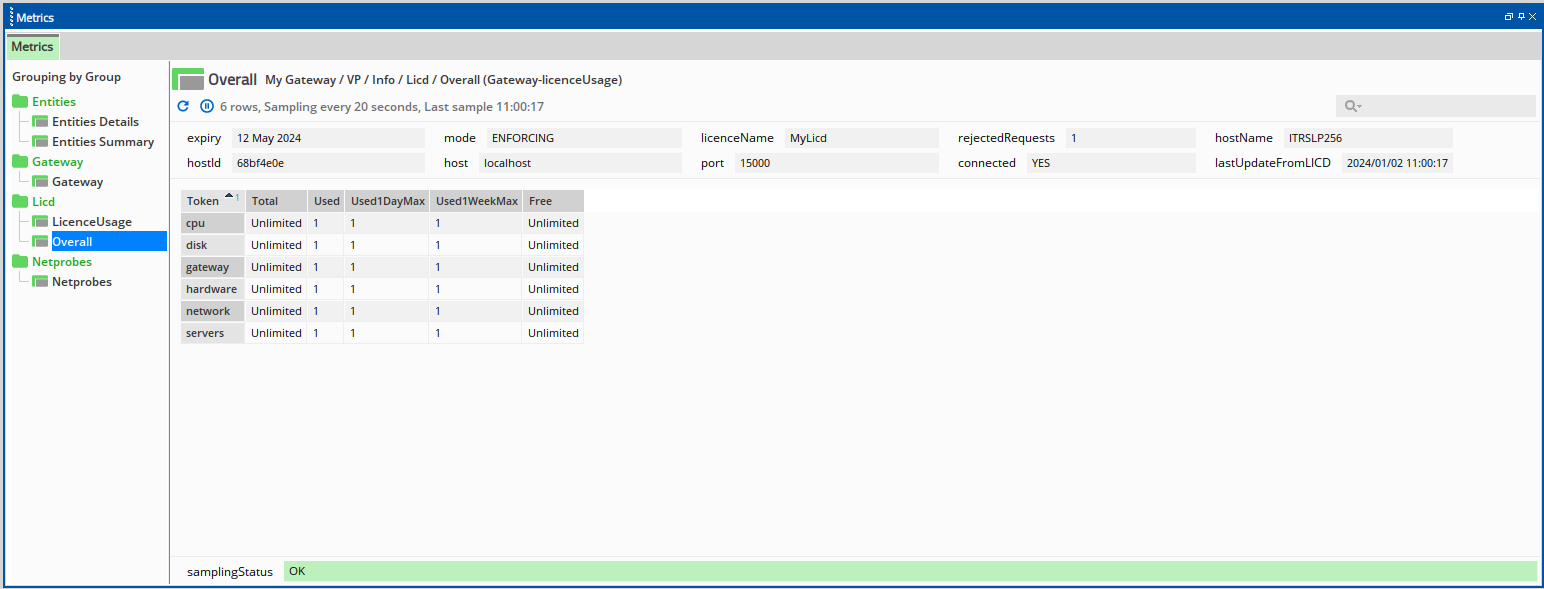
Provides a summary of all the license tokens that have been used.
Headline legend Copied
The headline cells above the table display the following data:
| Name | Description |
|---|---|
| expiry | Expiry date of the license file. |
| port | Port the Licence Daemon listens on for other Geneos processes to connect to. |
| mode | Mode for a Licence Daemon. It can be ENFORCING or MONITORING. For more information, see Licence Daemon Modes |
| connected | Indicates whether the license daemon is currently running or not. |
| licenseName | Name assigned to the Licence Daemon. |
| lastUpdateFromLICD | Timestamp of the most recent update received from the Licence Daemon. |
| rejectedRequests | Number of rejected requests. |
| host | IP Address or name of the machine where the Licence Daemon is running on. |
| hostName | Hostname of the machine where the Licence Daemon is running on. |
| hostId | Numeric identifier for the host. |
Table legend Copied
The table cells display the following data:
| Column Name | Description |
|---|---|
| Token | Represents the plugins that have been provided a license token. |
| Total | Total number of license provided. |
| Used1DayMax | Represent tokens usage maxes over one day. |
| Used1WeekMax | Represent tokens usage maxes over one week. |
| Free | Nuimber of unused license. |
If the Licence Daemon is not running, then the connected value in the Licence Usage view will be set to NO and the Overall view is not created. However, if the Licence Daemon is stopped after the Gateway has started, the Overall view is maintained. The value of connected will be set to NO and the lastUpdateFromLICD stops being updated.
If the Gateway is unable to obtain a license for the sampler, then the following error message is displayed:
ERROR: ProbeManager Sampler <sampler> in Managed Entity <managed entity> is unlicensed.
The following are the possible reasons for such error:
- The license usage may be exceeded if you are adding new samplers.
- The license has expired.
- The Gateway cannot connect to the Licence Daemon, which may be down because of network issues.
When license groups are configured, the plugin displays group-specific views instead of the Overall view.
If any additional licensing groups are configured on individual Netprobes, the corresponding group view is also shown. However, if a group (either the Gateway licensing group or a Netprobe licensing group) has not been configured on the Licence Daemon, the Other group view is shown instead. Only one Other view is displayed, even if multiple unconfigured groups exist.
Views for additional groups can also be shown via the plugin configuration. In this case, the default views are not shown, only those configured. If you configure views for groups that do not exist on the Licence Daemon, an empty view is displayed with an error in the samplingStatus.
By default, the plugin shows a view for each of the groups that the Gateway requests licenses for. If a Gateway is in licensing group G1 and has probes in licensing group G2 and G3, then it requests views for G1, G2, and G3. The Licence Daemon interprets the requests and views for managed groups that it requests and returns the Other view for any non-managed groups. Therefore, if the Gateway requests G1, G2, and G3 but the Licence Daemon administrator has only configured G1 on the Licence Daemon, the views sent back are G1 and Other, giving three views on the plugin: LicenceUsage, G1, and Other.
For example, consider a Licence Daemon configured with groups G1 and G2. A Gateway in G1 with probes in G2 and G3 and an empty plugin configuration would result in views displayed for G1, G2, and Other. If Overall, G2, and G3 were configured in the plugin, views would be created for each but with an error in G3 as it does not exist on the daemon.
Licence Usage plugin views (Licence Usage)
Licence Usage plugin views (Default - no groups in Licence Daemon)

Licence Usage plugin views (All groups)
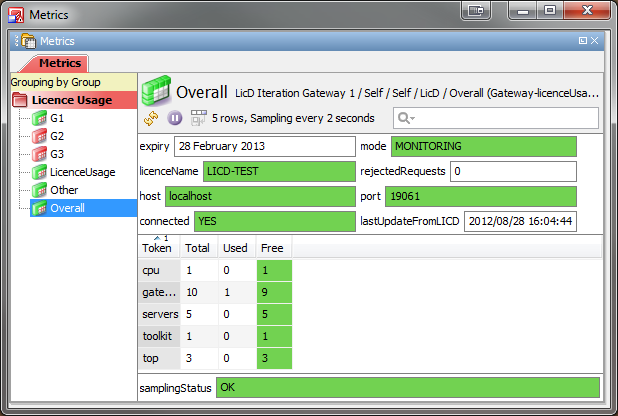
Licence Usage plugin views (Default - My groups)
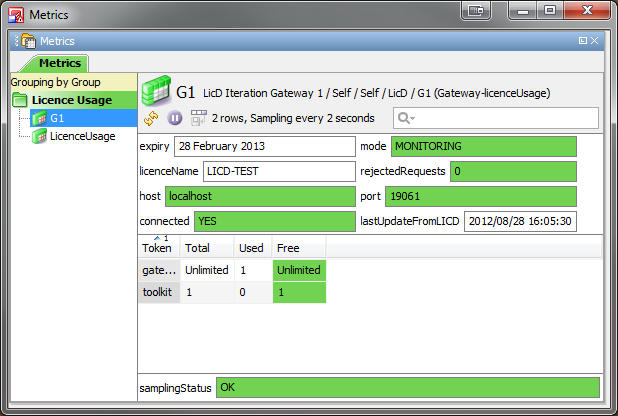
Suggested rules Copied
It is strongly suggested that a Gateway is used to monitor the Licence Daemon like any other application. The following are a set of useful rules that can be applied to the Gateway Data plugin and Licence Usage plugin.
- Ensure the administrator is emailed when a license is close to expiry. Target the
licenseDaysRemainingcell in the dataview of the Licence Usage or Gateway Data plugins. - Set a critical severity if the Gateway cannot connect to the Licence Daemon. Target the
licensingMethodcell in the dataview of the Gateway Data plugin or theconnectedcell in the dataview of the Licence Usage plugin. - Alert when the Gateway enters the emergency grace period. Target the
licenseGracePeriodModecell in the Gateway Data plugin, and optionally monitorlicenseGracePeriodRemainingas the disconnected-time budget decreases. - Ensure that the port, hostname, and license name are as expected. Target the respective cells in the dataview of the Licence Usage plugin.
- Ensure the Licence Daemon mode is as expected. Target the
modeheadlines in any of the Licence Usage views. Normally, this would be theOverallview for an administrator. - Monitor when the number of licenses run out or are exceeded. Target the cells in the
Freecolumn of the Licence Usage views.
Reporting Copied
Licenses Copied
License availability can be viewed via the web interface of the Licence Daemon. This can be accessed via http://<host>:<port>/licensing, where host is the host on which the daemon is running and port is 7041 unless it has been manually specified on the Licence Daemon command line.
The web-front end shows the following:
This page shows the following information:
- Name of the current license file (the name given by ITRS to the specific client or client site that the license has been created for).
- Expiry date of the current license file.
- A table showing information related to each type of license found in the license file.
You will see the following columns:
- Token — name for the particular type of license. For example, the license that allows you to run CPU plugins is called
cpu. - Licensed Amount — number of license for the type provided. The column will say “Unlimited” instead of a number if unlimited licenses of this type are available.
The following colors indicate status:
- Green — the Licence Daemon is in Enforcement mode.
- Amber — the Licence Daemon is in Monitoring mode.
If the Licence Daemon has not be configured to pre-allocate license tokens to groups, there will be one table called Overall.
If the Licence Daemon has been configured to pre-allocate license tokens to groups, then there will be a table called Overall, one table for each group specified by the administrator, and a final group called Other. See License groups for more information about licensing.
Reports Copied
The Licence Daemon generates a license report that records detailed license usage data for accurate license compliance monitoring. This report serves as the authoritative record of license usage in your deployment.
The license report is written to a file called licd-report.emf2rpt located in the reporting directory. By default, this directory is named reporting, unless overridden using the command line options.
The file is appended weekly with license usage information and then digitally signed to ensure data integrity.
Data obfuscation Copied
The following fields are obfuscated by default in the license report:
- The hostname of the Gateway and Netprobe
- The host ID of the Gateway and Netprobe
- The name of the Managed Entity
Snapshots Copied
The Licence Daemon captures a snapshot of the license usage summary every hour. Each snapshot is saved as a file named report-snapshot.gz, which uses standard gzip compression and can be viewed with tools such as zcat. These snapshot files are separate from the full, encrypted report files.
Snapshot files contain plain-text values and do not obfuscate sensitive data. They are stored in the same reporting directory as the report files and are intended for internal, operational use within your organization.
FAQ: Changes to the Licence Daemon in Geneos 7.8.0 Copied
Why are the changes to the Licence Daemon and license file introduced? Copied
These changes improve the accuracy and reliability of license usage reporting and remove the need for manual audits. License usage is now recorded automatically over time, reducing operational effort and simplifying license management. No license usage data is automatically sent to ITRS; usage data is shared only when requested by providing the generated license report file to ITRS.
Do I need to upgrade my Licence Daemon? Copied
Yes. From February 2026, new license files will require Licence Daemon 7.8.0 or later. Licence Daemon versions earlier then 7.8.0 will reach end of life on 31 July 2026. If you have any concerns or constraints, contact ITRS Support to find the most appropriate approach for your environment.
Do I need a new license file when upgrading? Copied
Yes. Licence Daemon 7.8.0 uses a new license file format, so an updated license file must be issued by ITRS as part of the upgrade. Contact ITRS Support to obtain a new license file.
Will these changes affect monitoring or license enforcement? Copied
No. These changes do not affect monitoring behavior or how licenses are enforced at runtime.
Do I still need to run the Licence Auditor? Copied
No. License usage is now recorded automatically by the Licence Daemon. The Licence Auditor is no longer required and will reach end of life on 30 April 2026.
How do I provide license usage data to ITRS now? Copied
License usage data is now automatically written to an encoded report file generated by the Licence Daemon. No manual data collection is required.
When requested by ITRS, you can share the generated report file (licd-report.emf2rpt) from the Licence Daemon reporting directory. By default, this directory is named reporting, unless a different location is configured using command-line options.
No license usage data is sent to ITRS automatically; data is shared only when you choose to provide the report file.