RMC Interface
Overview Copied
The RMC plugin brings RMC variables of any Thomson Reuters market data system (RTDS) component seamlessly and in real-time into the Geneos environment. When integrated, these parameters become fully manageable.
In addition to translating RMC variables, the RMC plugin provides additional value added functionality such as:
- The ability to pick and display selected RMC variables, removing the complexity of the built-in tools (adhmon, adsmon).
- Provide rate of change calculation. Actual values of some of the parameters, such as the total number of updates, for example, are irrelevant by themselves. The rate of change of those parameters is much more useful.
Basic configuration Copied
Template Copied
The template section is used to pick and display the desired variables. You can select from two modes:
- data — enables you to pick and display RMC variables, as desired.
- Rmc template — enables you to reuse an existing data template into a new RMC Interface sampler.
Instance Copied
Instance number of the RMC component being monitored.
- Name
- Number
Mandatory: Yes
Shared memory key Copied
Shared memory used by the RMC component being monitored.
Data template Copied
When you opt for the data option, you can define the dataview from scratch:
Headlines Copied
This section defines up to six headline-type variables that are shown at the top of the view.
When you define a variable, you must provide both name and RMC name.

| Field | Description |
|---|---|
| Name | Title to display against the headline on the view. |
| Rmc name | RMC name identifying the source managed variable. For more information, see $HOST and $INSTANCE Substitutions. Mandatory: Yes |
| options | Provides data aggregation options.
|
Options Copied
When you create a data template, you can choose from two approaches:
Records option Copied
The records option constructs a list of variables in the view. This option should be used when the variable names are known at the time the template is created.
The records section is similar to the headlines section, except the variables are displayed in a list and the number of the variables is not limited to six—you can define up to 1000 variables.
The other difference from the headlines section is that records section must be in the template on its own—a template cannot have both a LIST section and a TABLE section.
For more information, see the RMC Interface Records Option.
Table option Copied
The table option constructs a table in the view. Use this when the full variable names are not known at the time the template is created.
For example, when monitoring Sink Distributor User Mounts it is not possible to fully specify the variable names, as new mounts may come and go. Instead, a pattern that the variable names fall into is specified.
For more information, see the RMC Interface Table Option.
RMC Interface Records Option Copied
The records option constructs a list of variables in the view. This option should be used when the variable names are known at the time the template is created.
The records section is similar to the headlines section, except the variables are displayed in a list and the number of the variables is not limited to six—you can define up to 1000 variables.
The other difference from the headlines section is that records section must be in the template on its own—a template cannot have both a LIST section and a TABLE section.
Records option configuration Copied
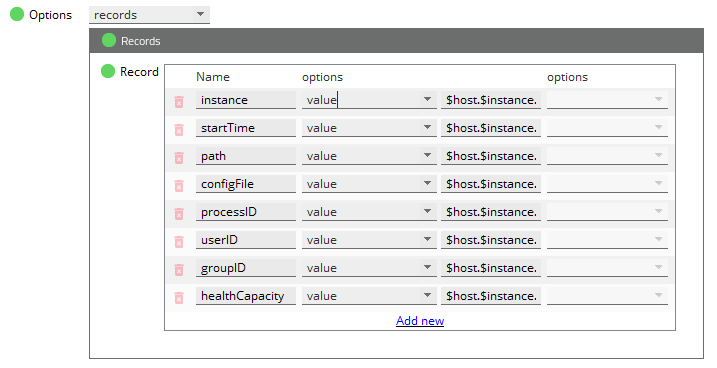
When you opt for a data template and choose the records option, here are the ways you can configure the table:
| Field | Description |
|---|---|
| Name | Title to display against the records on the view. |
| options (second column) | Denotes the field content type:
|
| options (third column) | Provides data aggregation options.
|
RMC Interface Table Option Copied
The table option constructs a table in the view. Use this when the full variable names are not known at the time the template is created.
For example, when monitoring Sink Distributor User Mounts it is not possible to fully specify the variable names, as new mounts may come and go. Instead, a pattern that the variable names fall into is specified.
Table option configuration Copied
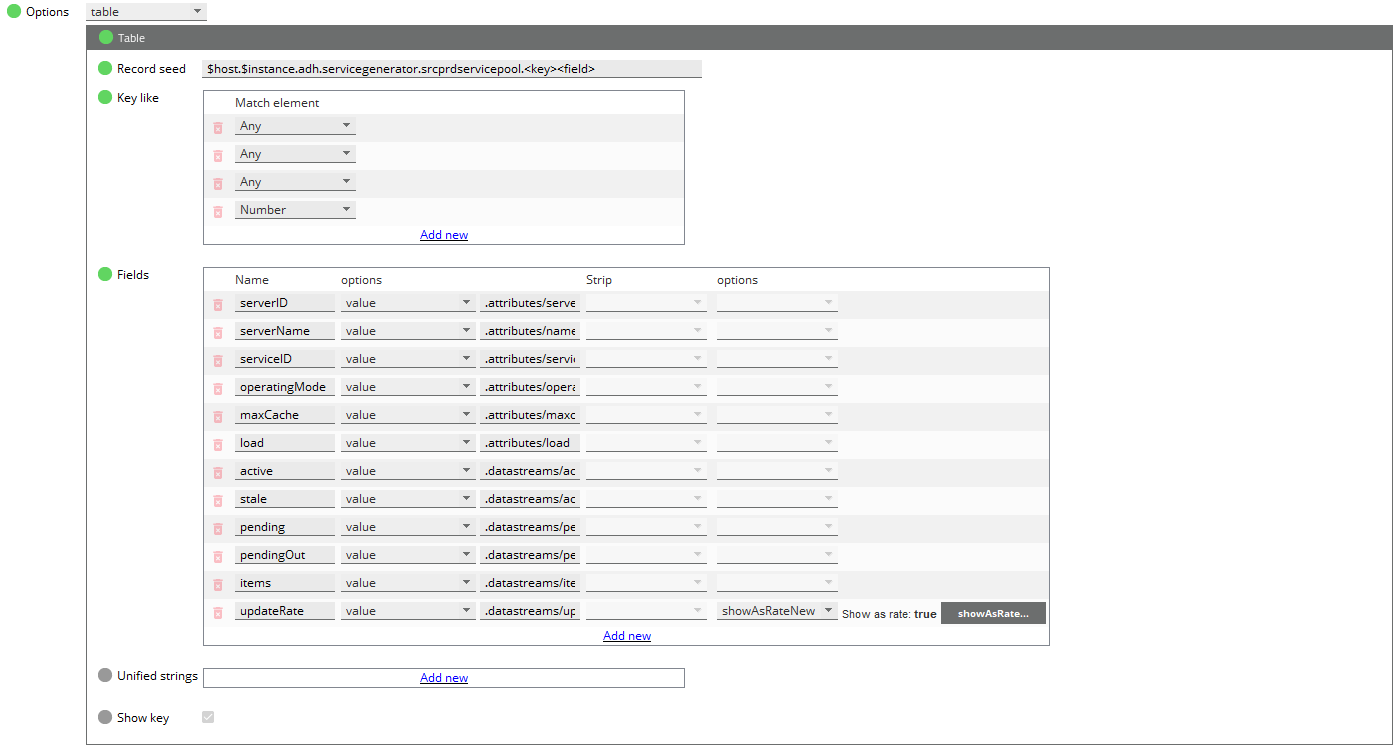
When you opt a data template and choose the table option, here are the ways you can configure the table:
Record seed Copied
This option is used to retrieve data from recurring variable strings, such as user, mounts, services, and so on.
The record seed replaces the recurring variables followed by the various fields to be retrieved.
For more information, see $HOST and $INSTANCE substitutions.
Mandatory: Yes
Key like Copied
The key in the variable name must map to a text string that is unique across all the records in the RMC data stream.
Sometimes it is necessary to only pick the records that have the key that match a specific pattern. For example, when monitoring Service instances, the key must have a text followed by a number. If this pattern restriction is not specified, the Service summary records (text without number) will also be displayed.
The key forms the changeable part of the record seed. This can be the username, serverId, service name, and so on. The key can be several variable parts.
Key pattern can be specified using combinations of matchElements in any order.
Mandatory: Yes
| Match Element | Description |
|---|---|
| Number | Matches any combination of 0-9 up to a '.' |
| Text | Matches any combination of characters up to a '.' or a number. |
| Any | Matches any combination of characters up to a '.' |
Fields Copied
Define the fields that will be shown in the table.
| Field | Description |
|---|---|
| Name | Name of the column that shows this field. Mandatory: Yes |
| options (second column) | Denotes the field content type:
|
| Strip | Some RMC variables contain additional information that may not be desired, so this command can be used to truncate the contents of a variable at a predefined position. You have the option to truncate
|
| options (fourth column) | Provides data aggregation options.
|
Unified strings Copied
This is an optional parameter that indicates that the specified unified strings are to be considered as a single element that matches a single element in the pattern specified with Key like.
For example, if a.b.c is specified as a unified string, then the record ‘a.b.c.1.d’ will match the pattern Text + Number + Text.
Wildcards can be used in unified strings. Each * will match a single dot-separated element in the key.
For example, *.a.b will match ‘xxx.a.b’ but not ‘xxx.yyy.a.b’.
Mandatory: No
Show key Copied
This parameter may be specified to produce a field in the display which will indicate how the key has been constructed. This can be useful for initial setting up of the template, or debugging.
Mandatory: No
Default: False
Rmc template Copied
This option enables you to create a detached table or record, which can be used by more than one RMC Interface sampler.
When you select this option, the RMC Interface sampler defines or attaches itself to an RMC template from static variables. If the template does not exist, then the sampler prompts you to create a new one using the data template options.
For more information on the data template option, see Data template.
Rate calculation Copied
When defining fields in the data template, you have the option to show values as rates.
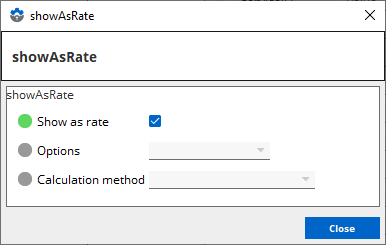
showAsRate Options Copied
Some RMC variables contain counters that are incremented since the RMDS component is started; for example, the total messages received. In itself, this number is not useful; however, the rate of change of this number is a useful parameter to monitor:
Signed wrap— monitors for signed wrap-around in the value of the variable being monitored.Unsigned wrap— monitors for unsigned wrap-around in the value of the variable being monitored.
Calculation method Copied
The calculation method determines how the plugin calculates the rate of change between successive values returned by RMC. Two calculation methods are available:
| Method | Description |
|---|---|
Change between samples (sampling rate) |
This method calculates the rate using the values collected at each plugin sampling interval. The reported rate depends on the sampling frequency, regardless of when RMC generated the updates. For an example calculation, see Sampling rate calculation. Use this method when the sampling interval is the primary point of reference, or when you want the reported rate to reflect only the values observed at each sample. |
Change between syncs (sync rate) |
This method calculates the rate using the values and timestamps of two consecutive RMC updates. This provides a rate that more closely reflects the actual update frequency of the monitored system. If the last RMC update occurred more than a second before the latest plugin sample, the plugin uses the current sample time in the denominator until fresh data becomes available again. For an example calculation, see Sync rate calculation. This method is recommended when monitoring event or message counters, as it uses the RMC update timestamps and indicates when the latest update is becoming stale. |
Assume the plugin samples every 20 seconds, and RMC produces the following values:
| Time (s) | Event | RMC value (units) | Sampled value (units) |
|---|---|---|---|
| 0.0 s | Sample | - | 1000 (assumed from the last RMC update) |
| 5.2 s | RMC update | 1042 | - |
| 9.8 s | RMC update | 1098 | - |
| 15.4 s | RMC update | 1135 | - |
| 19.6 s | RMC update | 1151 | - |
| 20.0 s | Sample | - | 1151 |
| 24.1 s | RMC update | 1172 | - |
| 31.5 s | RMC update | 1186 | - |
| 39.6 s | RMC update | 1193 | - |
| 40.0 s | Sample | - | 1193 |
The rates are calculated as follows.
Sampling rate calculation Copied
Using the timeline shown in the table above, sampling rate calculates the rate using the values captured at consecutive sampling times.
Formula:
(Current sampled value - Previous sampled value)
-----------------------------------------------
(Current sample time - Previous sample time)
| Sample time (s) | Sampled value (units) | Calculation | Sampling rate (units/s) |
|---|---|---|---|
| 0 | 1000 | — | — |
| 20 | 1151 | (1151 − 1000) / 20 | 7.55 |
| 40 | 1193 | (1193 − 1151) / 20 | 2.10 |
Sampling rate compares only the values captured at each sampling time. Intermediate RMC updates are not used directly in the calculation.
Sync rate calculation Copied
Using the same timeline and RMC update values, sync rate calculates the rate using the values and timestamps of consecutive RMC updates with respect to the sample time. Sync rate is calculated in one of two scenarios:
- The latest RMC update occurred within one second of the sample time.
- The latest RMC update occurred more than one second before the sample time.
Scenario 1 (within one second of the sample time) Copied
When the most recent RMC update occurred within one second of the sample time, sync rate uses the timestamps of the RMC updates instead of the sampling time.
Formula:
(Current RMC value - Previous RMC value)
----------------------------------------
(Current RMC update time - Previous RMC update time)
| Time (s) | Event | Current − Previous value | Current − Previous time | Sync rate (units/s) |
|---|---|---|---|---|
| 15.4 | RMC update | 1135 − 1098 = 37 | 15.4 − 9.8 = 5.6 s | 6.61 (hidden) |
| 19.6 | RMC update | 1151 − 1135 = 16 | 19.6 − 15.4 = 4.2 s | 3.81 (hidden) |
| 20.0 | Sample | 1151 − 1135 = 16 | 19.6 − 15.4 = 4.2 s | 3.81 |
| 24.1 | RMC update | 1172 − 1151 = 21 | 24.1 − 19.6 = 4.5 s | 4.67 (hidden) |
| 31.5 | RMC update | 1186 − 1172 = 14 | 31.5 − 24.1 = 7.4 s | 1.89 (hidden) |
| 39.6 | RMC update | 1193 − 1186 = 7 | 39.6 − 31.5 = 8.1 s | 0.86 (hidden) |
| 40.0 | Sample | 1193 − 1186 = 7 | 39.6 − 31.5 = 8.1 s | 0.86 |
At the 20- and 40-second samples, the latest RMC update in each case occurred within one second of the sample time, so the plugin uses that RMC timestamp as the current update time.
Rows marked (hidden) show intermediate calculations that the plugin performs but does not report.
Scenario 2 (more than one second before the sample time) Copied
Assume RMC stops sending updates after 19.6 seconds and sends the next update at 75.0 seconds. The plugin continues sampling every 20 seconds.
At the 40-second sample, more than one second has elapsed since the latest RMC update. The plugin then uses the sample time instead of the latest RMC update time in the denominator (40.0 instead of 19.6). The numerator still uses the difference between the latest RMC value and the previous distinct value (1151 − 1135), so the previous update time in the calculation remains 15.4 seconds.
(Current RMC value - Previous RMC value)
----------------------------------------
(Current sample time - Previous RMC update time)
| Time (s) | Event | Current − Previous value | Current − Previous time | Sync rate (units/s) |
|---|---|---|---|---|
| 15.4 | RMC update | 1135 − 1098 = 37 | 15.4 − 9.8 = 5.6 s | 6.61 (hidden) |
| 19.6 | RMC update | 1151 − 1135 = 16 | 19.6 − 15.4 = 4.2 s | 3.81 (hidden) |
| 20.0 | Sample | 1151 − 1135 = 16 | 19.6 − 15.4 = 4.2 s | 3.81 |
| 40.0 | Sample | 1151 − 1135 = 16 | 40.0 − 15.4 = 24.6 s | 0.65 |
| 60.0 | Sample | 1151 − 1135 = 16 | 60.0 − 15.4 = 44.6 s | 0.36 |
| 75.0 | RMC update | 1190 − 1151 = 39 | 75.0 − 19.6 = 55.4 s | 0.70 (hidden) |
| 79.5 | RMC update | 1219 − 1190 = 29 | 79.5 − 75.0 = 4.5 s | 6.44 (hidden) |
| 80.0 | Sample | 1219 − 1190 = 29 | 79.5 − 75.0 = 4.5 s | 6.44 |
As the time since the last RMC update increases, the denominator becomes larger while the numerator remains unchanged. Consequently, the reported sync rate decreases at the 40- and 60-second samples. At the 80-second sample, the latest RMC update at 79.5 seconds falls within one second of the sample time, so the plugin recalculates the rate using scenario 1.
Advanced configuration Copied
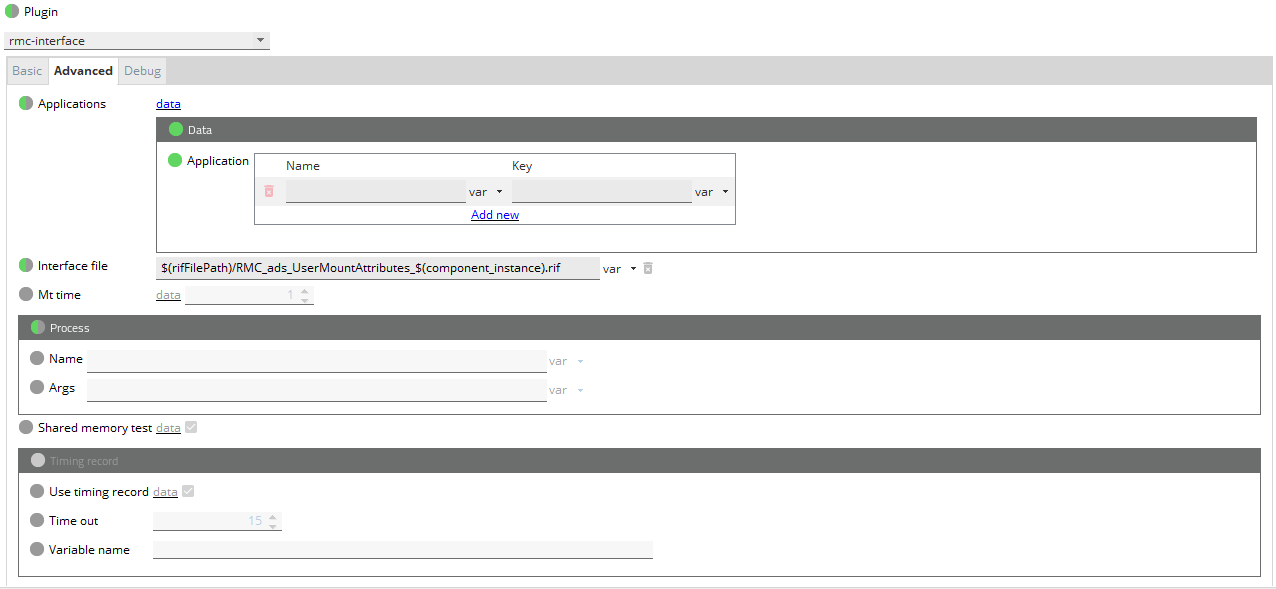
Applications Copied
When dealing with mounts, this option enables the RMC Interface sampler to translate an application ID to a name string.
Mandatory: No
| Option | Description |
|---|---|
| Name |
The name string that shows on the dataview for a given application ID. Names must not have spaces or delimiters. |
| Key | The application ID which you want to appear as a name string. |
Interface file Copied
Name and location of the download template. The interface file is automatically created when you configure the RMC Interface sampler.
Default format: RMC_<sampler name>.rif.download
Mandatory: No
Mt time Copied
Amount of time, in milliseconds, to spend processing incoming data in main thread.
Mandatory: No
Process Copied
Use this option to tie the detection to a single named process instance.
For more information, see Shared Memory Status Detection.
Mandatory: No
| Option | Description |
|---|---|
| Name | Name of the actual publishing process that writes to the shared memory. If this is set then the plugin will verify that the process is up to validate the shared memory state. |
| Args | Arguments passed to the actual publishing process. This helps to identity the process, for example -install .gw |
Shared memory test Copied
Enables the shmget() shared memory tests within the RMC plugin. This is enabled by default. When disabled, the plugin proceeds with monitoring without checking the shared memory status. Disable only when diagnosing syncing issues between the plugin and the RMC component/s being monitored.
Default: Enabled
Timing record Copied
For more information, see Shared Memory Status Detection.
Mandatory: No
| Option | Description |
|---|---|
| Use timing record | Enables shared memory status detection method using time statistics read from the shared memory. This can be used together with the default shared memory status test. |
| Time out | Time out value in seconds. Default value: 15 |
| Variable name | Name of the variable that contains the timing record from the shared memory statistics. |
Debug tab Copied
private Copied
Private testing and debugging settings.
Mandatory: No
$HOST and $INSTANCE substitutions Copied
RMC variable names can include $host and
$instance. In this case, the $host is replaced with
the hostname of the machine the plugin is running on
and $instance is replaced with the INSTANCE variable
of the SAMPLER_DESCRIPTOR.
Recording of the RMC Datastream Copied
For troubleshooting purposes and to get a simpler overview of the content of the shared memory, you can use the rmc recorder tool. This can be downloaded from the utilities section.
For example:
./rmcRecorder.linux_64 -k 80
This can also be piped into a file using >><filename>
-k indicated that we are querying shared memory key 80 (standard ADH)
Shared Memory Status Detection Copied
The plugin can use either of the following methods, or a combination of the two, to
detect the state of a component, such as the adh, ads, and so on:
Default mode Copied
The default mode of operation verifies that the shared memory segment identified by the key is available, as well as if the creator process of the shared memory segment is up. This mode can also detect if a shared memory segment is reused by a restarted RMC component, and allows the plugin to resync with the new process.
Timing record check mode Copied
This is an alternate mode of operation to check if the publishing process is up and the data provided is current, in the case where an existing shared memory segment may have gone stale and is no longer being updated.
Most, but not all, of the publishing services provide Shared Memory Statistics information. This data is updated on a 5 second interval. By setting the correct Timing Record parameters in the Sampler Descriptor, we can use this information to detect if the shared memory is running:
- Timing Record > Use timing record specifies if we want to enable this mode of shared memory detection.
- Timing Record > Time out specifies the maximum amount of time in seconds before declaring the shared memory is invalid since the last update received.
- Timing Record > Variable name specifies the variable that holds the timing record information.
Example Copied
$host.$instance.src_dist.admin.MemoryStats/time = value: 1336501974
Using this mode alone, the plugin may not be able to recover and re-sync with a restarted RMC component if the previous instance of the component crashed or was forcibly killed (kill -9), and the shared memory resources were manually removed (ipcrm). It is advisable to use this mode together with either the default mode or the process check mode.